 Swiss travel eSIM provider
Installing your eSIM
How do I install my eSIM on an iPhone?
On iOS 17.4 or later, tap Install on iPhone in your email or My eSIMs. Or scan the QR code from another screen.
Install your eSIM while you are connected to Wi-Fi, ideally a day or two before you travel. Install it on the phone you will travel with: the eSIM is bound to that phone and cannot be moved to another one.
Option 1: one tap (iOS 17.4 or later)
- On your iPhone, open the eSIM email or My account > My eSIMs.
- Tap Install on iPhone.
- Follow the steps on screen and tap Continue.
Option 2: scan the QR code
Show the QR code on another screen, such as a computer or a printout, then on your iPhone:
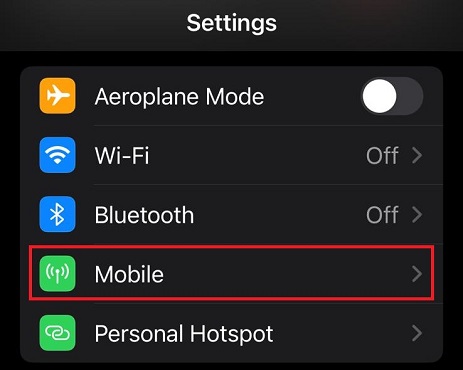
- Open Settings and tap Mobile Data (or Cellular).

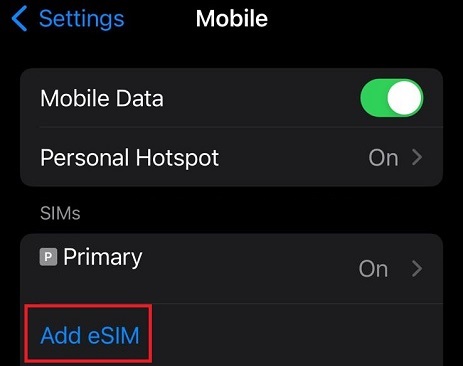
- Tap Add eSIM.
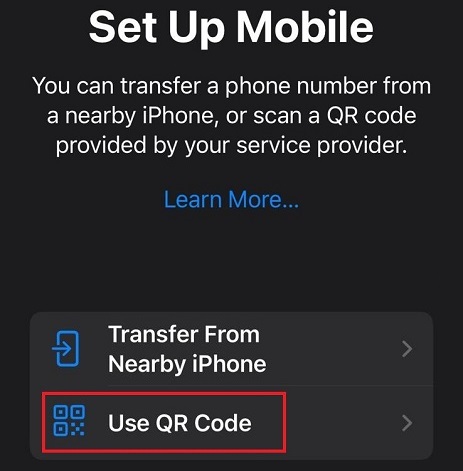
- Tap Use QR Code.
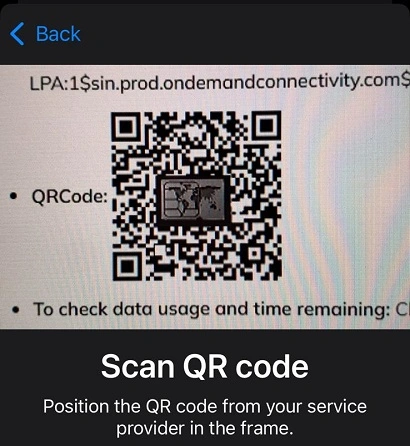
- Scan the QR code from your email or My eSIMs.
- Tap Continue to activate the eSIM.
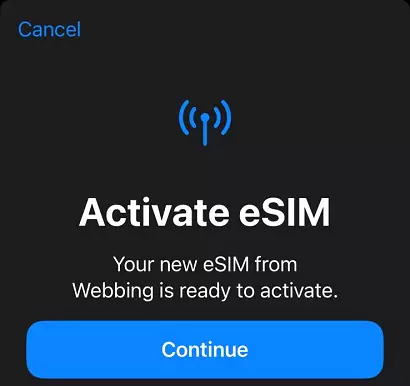
Option 3: enter the details manually
- Go to Settings > Mobile Data > Add eSIM > Use QR Code and tap Enter Details Manually.
- Copy the manual install code (LPA) from your email or My eSIMs, paste it and tap Next.
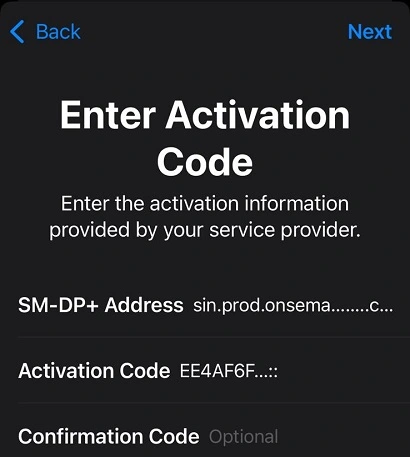
After installing
- Give the eSIM a label such as “Travel” so you can recognise it.
- Keep your main line for calls and messages if you like.
- When you arrive, turn on data for the eSIM.
Last updated October 15, 2026
Still need help?
Send us a message with your order number and we will get back to you.